
Airam SmartHome – Frequently Asked Questions
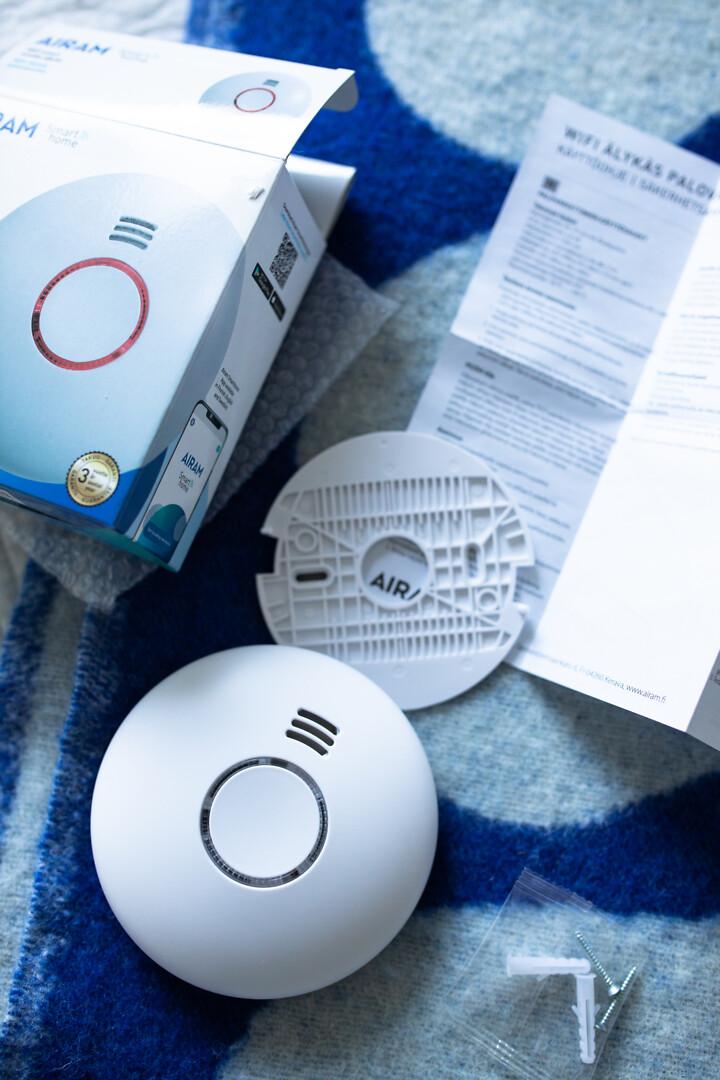
Have you encountered a problem with your SmartHome product? This article provides support and answers to the most frequently asked questions about the app and the products. You can also explore the extensive, product-specific FAQ section available in the SmartHome app. You can access it after connecting your product to the app.
Be sure to check out our tutorial videos and usage tips as well.
1. General security information
2. Connecting devices
3. Disconnecting / resetting to factory settings
4. Sharing devices with other users
5. Basic device usage
6. SmartHome support
1. General security information
Airam SmartHome is based on the easy-to-use and versatile Tuya platform, which is also used by thousands of other smart device manufacturers worldwide. Tuya strictly complies with regional data security and privacy laws and regulations. The app is continuously developed and updated, and device updates are also regularly provided.
When connecting a smart device to a WiFi network, make sure your network uses at least WPA2 encryption and a strong password. If desired, you can create a separate WiFi network for smart devices using an additional router. Some routers also support multiple networks as a built-in feature.
2. Connecting devices
How do I connect an Airam SmartHome device to the Airam SmartHome app?
The first time, you can connect your Airam SmartHome device by selecting “Add device” on the device management home screen. Later, you can add new devices using the + button in the upper right corner of the app. You can add a device manually or by using the app’s automatic device search. For manual pairing, select the device from the list and follow the instructions in the app. If you cannot find your device in the list, use the Other category.
What should I do if pairing my Airam SmartHome device fails?
In case of connection issues, check the following:
- Make sure Bluetooth is enabled on your smartphone (some devices use Bluetooth to speed up and simplify pairing).
- Make sure the device has power, is switched on, and is in pairing mode.
- Ensure the WiFi network used for pairing is not hidden and that the signal strength is good.
- Check that the WiFi password is entered correctly.
- Make sure the WiFi network frequency is 2.4 GHz.
- Ensure that DHCP is enabled on your WiFi router.
- If the connection is otherwise good but pairing fails, check that the WiFi router is not overloaded.
Use AP mode with the following products: IP44 smart plug, LED strips, smoke alarm, water leak detector, siren.
3. Disconnecting / resetting to factory settings
How do I reset an Airam SmartHome device to factory settings?
You can reset the device by following these steps:
- Make sure the device has been switched off for more than 10 seconds before turning it back on.
- Switch the device on and off three times (on–off–on–off–on) with a few seconds between each action. Wait until the device starts flashing rapidly. The device will enter Smart mode, and you can now reconnect it via the app.
How do I disconnect an Airam SmartHome device?
Select the device (for example, a smart bulb) in the app and tap the device icon. This opens the control panel. From the upper right corner of the control panel, you can access device settings and remove the device from the app.
4. Sharing devices with other users
Can I share Airam SmartHome devices with other users?
Yes, Airam SmartHome devices can be shared with other users.
How do I share my Airam SmartHome device?
Sharing a single device:
- Go to the device control panel and device settings.
- Select device sharing and invite another user via email.
Sharing household devices:
- Go to the app home screen, select Home management from the upper right corner, and choose the desired home.
- Select Add member and invite users to your home.
What is the difference between a home owner, administrator and member?
The home owner has full management rights. A home can only have one owner. Administrators can manage devices and rooms and add members. Members can use devices but cannot modify device or room settings.
5. Basic device usage
How do I control my Airam SmartHome device?
Select the device in the app and tap its icon to open the control panel. When the device is on, you can control colour, brightness, timers and preset lighting modes. Even if the device is off, you can still manage timers.
How do I rename my Airam SmartHome device?
Open the device control panel by tapping the device icon. From the upper right corner, you can access settings and rename the device.
Can I use the Airam SmartHome app on a tablet?
At the moment, the Airam SmartHome app is designed for smartphone use. It may not function correctly on tablets.
Can I use Airam SmartHome bulbs with a dimmer switch?
Airam SmartHome bulbs must not be used with a dimmer switch. Dimming is only possible via the SmartHome app. Smart bulbs can be used with a standard on/off switch, but this may cause the device to reset to factory settings.
Can I use Airam SmartHome devices when I’m not at home?
Yes, as long as the devices are connected to a WiFi network with an active internet connection.
Will my settings be lost if I log in on another phone?
Device settings are stored in the cloud. Your settings will not be lost or changed if you log in on another phone or if the WiFi connection is temporarily interrupted.
6. SmartHome support
If you did not find the help you need on this page, in the app’s FAQ section or in our tutorial videos, please contact us by email: asiakaspalaute@airam.fi.